
Recallab › Guide › Answering a question
Answering a question
Every mode in Recallab — Quick 10, the High yield screener, a module, a mock exam, any of the Apps — runs the same question card. Learn it once and the rest of the app follows.
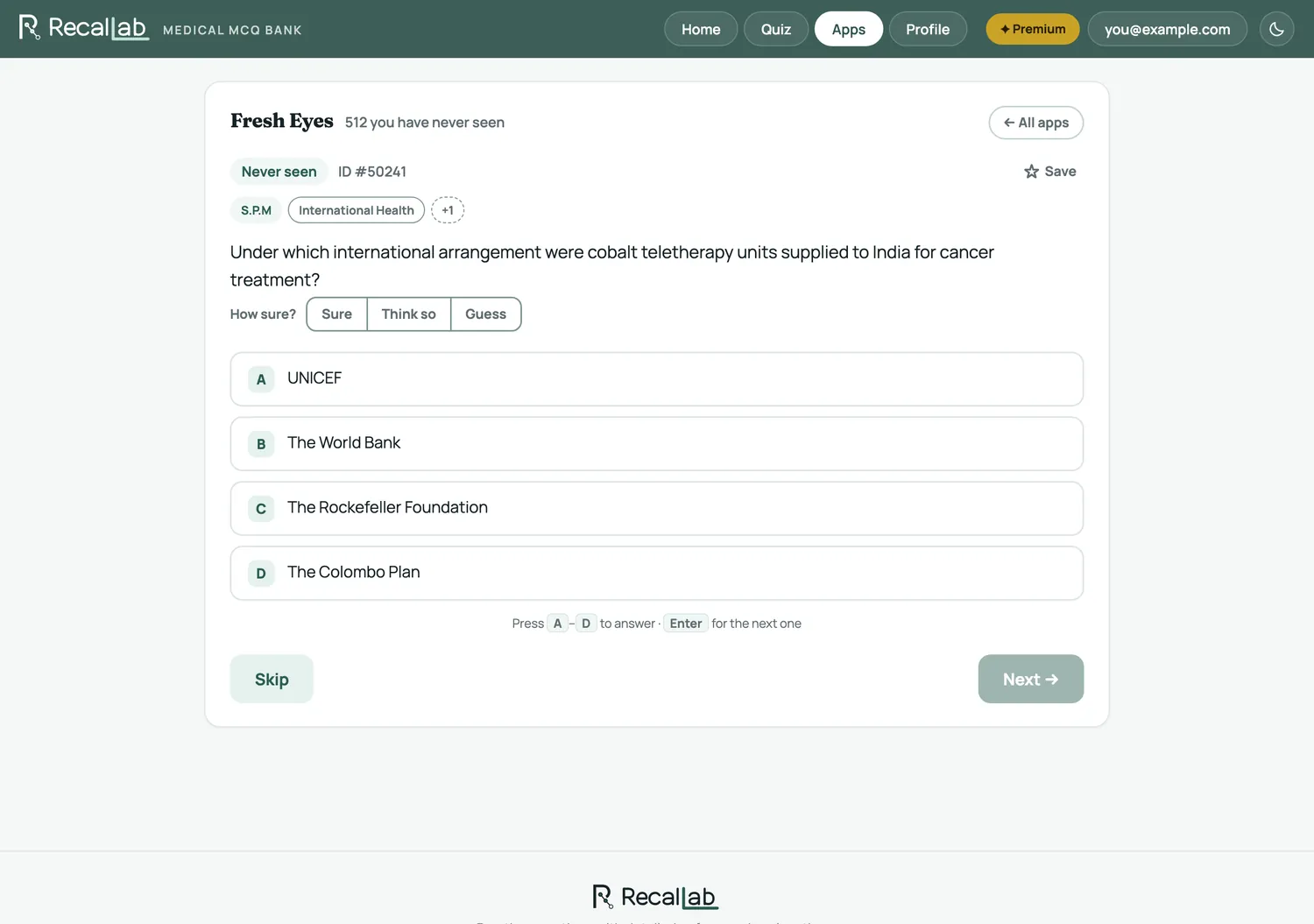
Say how sure you are first
How sure? offers Sure, Think so and Guess. It is optional, and you can answer without touching it — but four of the Apps are built entirely out of it. False Certainty is the set you were sure about and got wrong. Lucky Guesses is the set you guessed and happened to get right. Neither can find anything if you never say.
It also feeds the review schedule: a question you guessed correctly comes back sooner than one you knew cold.
Answering
Click an option, or press A to D. Press Enter for the next one. Skip passes without recording an answer — a skipped question stays unseen and comes round again.
The explanation
The answer comes back immediately. Your choice is struck through and marked yours; the correct one is highlighted.
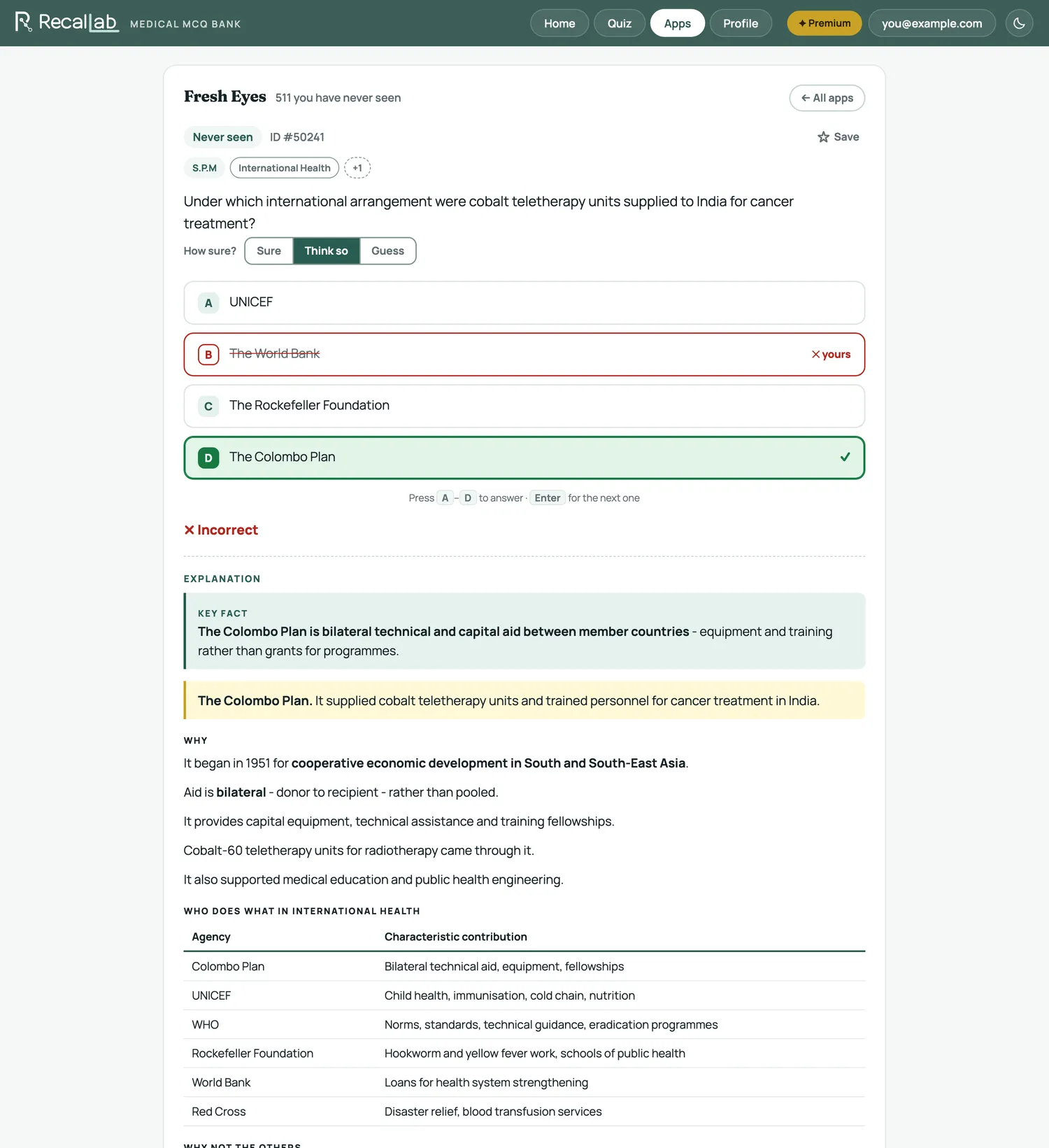
Explanations follow a fixed shape, and the colours always mean the same thing:
| Key fact | The one line worth memorising. If you read nothing else, read this. |
| The answer | Why the correct option is correct. |
| Why | The reasoning, and the comparison tables that separate look-alikes. |
| Why not the others | Each wrong option, and the specific thing that rules it out. |
Almost every explanation carries an illustration drawn for that question, and a reference to a current edition. Press Save on any question to send it to Bookmarks.